The problem
When a technician needs a password the user can't reset, it usually arrives in a Teams chat, an email or a comment on the Jira issue. It stays there, readable by anyone who can open that chat, mailbox or issue, long after the job is done.
Nothing links the password to the ticket, so nobody remembers to delete it. There's also no record of who saw it, which is what an auditor will ask for.
How it works with Jira Service Management
- Connect once. An admin connects Jira Service Management to SafeHanded with an API token.
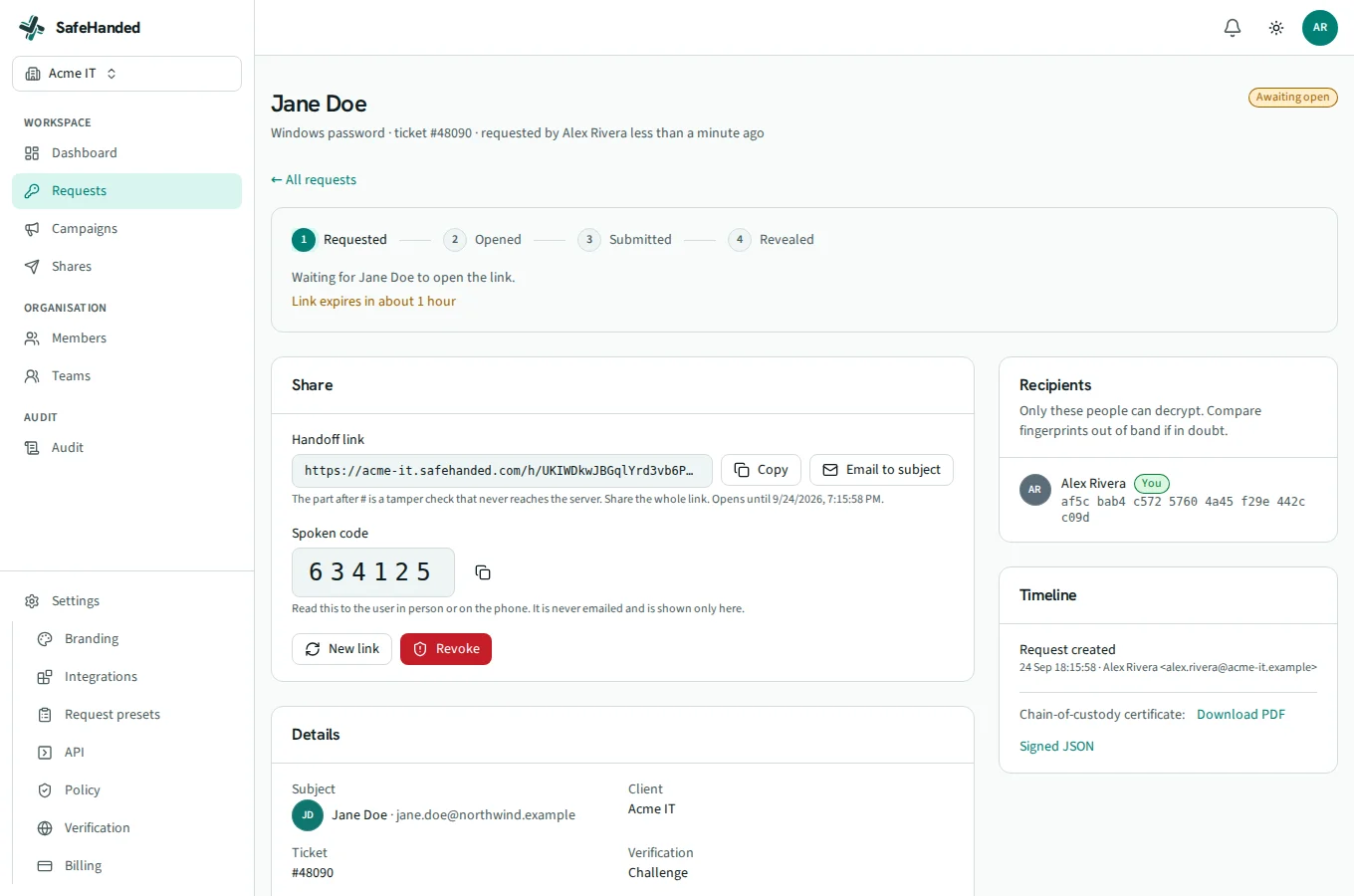
- Request from the ticket. A Jira automation rule adds a one-click link to the issue. The link opens a new request with the ticket linked and the reporter's name filled in, plus their email where Jira shares it.
- The user sends it safely. The user types the password on a branded page. Their browser encrypts it to the technicians named on the request, so a leaked link lets someone submit, never read.
- Close the ticket. Resolve or close the issue as usual. SafeHanded destroys the password when the ticket closes and records this in an internal comment on the issue.
Set it up
You need a Jira admin and a SafeHanded Owner or Admin on the Team plan or above. The Jira Service Management setup guide in the docs has every step.