The problem
When a technician needs a user's password, it usually arrives in a ticket reply, an email or a chat message. It then sits in Freshservice's history, readable by anyone with access, long after the ticket is closed.
How it works with Freshservice
- Connect once. An admin connects Freshservice to SafeHanded with an API key.
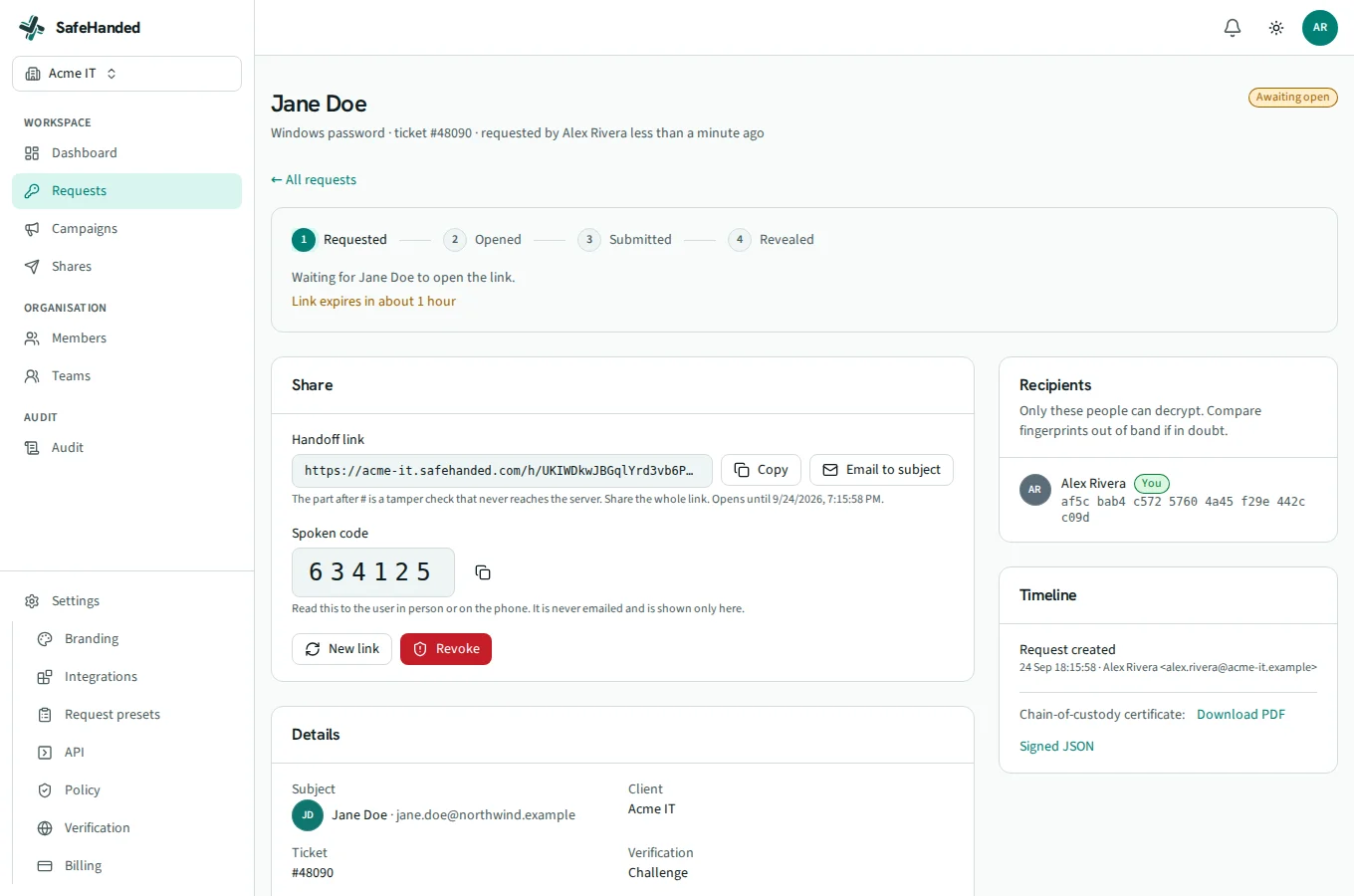
- Request from the ticket. A canned response puts the request link on any ticket. The link carries the ticket number: SafeHanded looks the ticket up in Freshservice through that connection and fills in the requester's name, email and mobile.
- The user sends it safely. The password is encrypted in the user's browser to the technicians named on the request. A technician reveals it with their passkey.
- Close the ticket as normal. SafeHanded destroys the password and adds a private note to the ticket.
Set it up
It takes about ten minutes and needs a Freshservice admin and SafeHanded's Team plan or above. The Freshservice setup guide in the docs has every step.